
Dead Clicks: How to Find and Fix the Clicks that Go Nowhere

.png)
Someone lands on your pricing page, clicks the bold heading above your plan comparison, and waits. Nothing moves. They click it again. Then they leave.
That first click is a dead click, and it happened because the heading looked like a link. Most teams never see it, because nothing broke, no error fired, and analytics recorded a perfectly ordinary pageview. The click that went nowhere is invisible in every report you already read.
This guide covers what dead clicks are, why they happen, how to find them, and which ones deserve a fix.
What is a dead click?
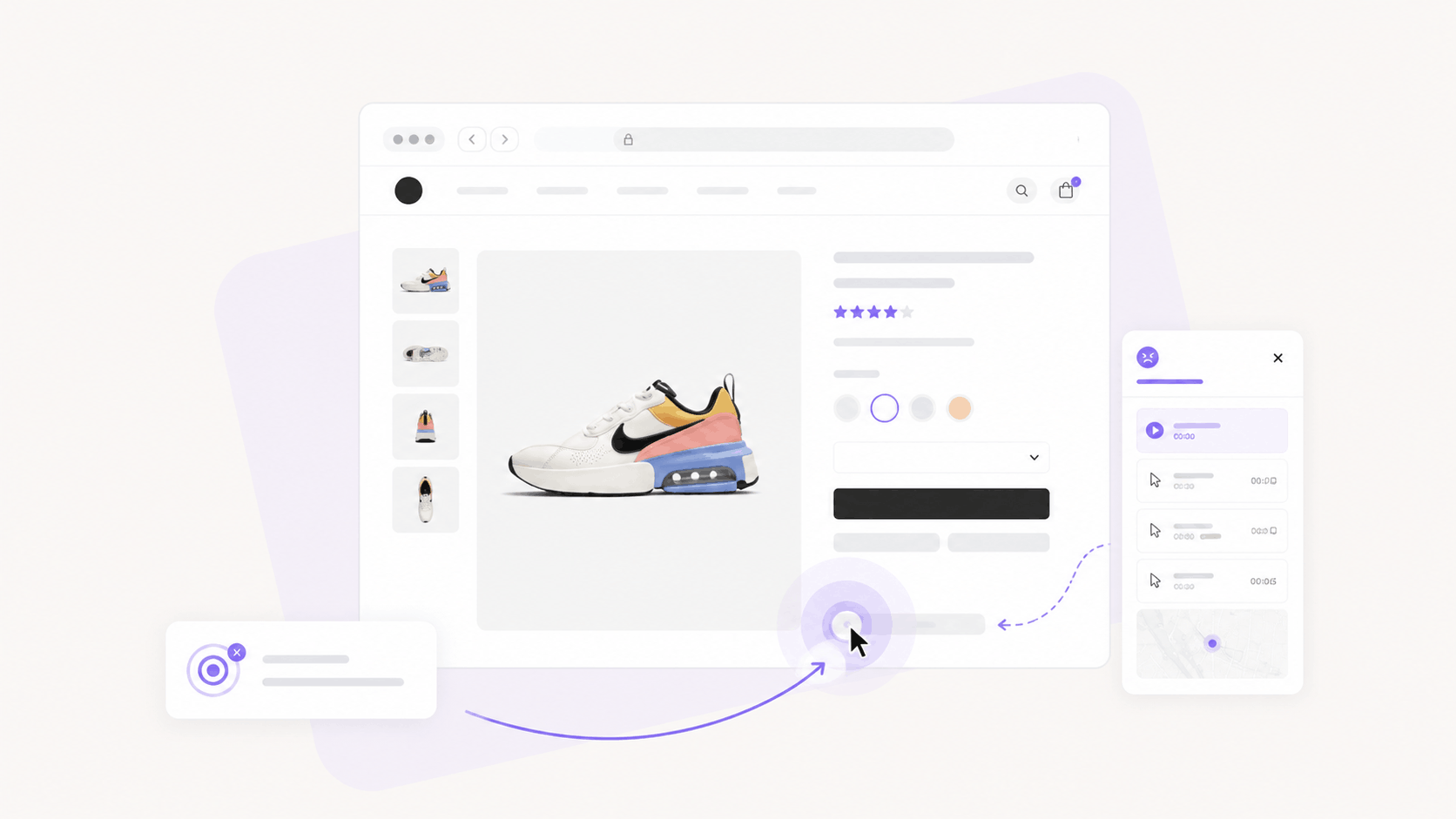
A dead click is a single click or tap on a page element that produces no response at all. No navigation, no state change, no visual feedback. The user clicks something they believed was interactive, and nothing on the page changes.
The word "single" matters. One dead click is a user forming an expectation that your interface did not meet. It is the earliest, quietest signal of user confusion you can capture, and it arrives long before anyone complains.
Dead clicks show up everywhere: headings styled to look like links, icons with no click handler, images users expect to enlarge, disabled buttons with no explanation, and text that carries an underline for emphasis. Each one is a small mismatch between what your design promises and what it delivers.
Dead clicks, rage clicks, and error clicks
These three sit on the same spectrum of user frustration, and teams mix them up constantly.
A dead click is one click that gets no response. A rage click is several rapid clicks on the same element, which means the user already tried once, got nothing, and escalated. An error click is a click that triggers a JavaScript error in the console — something did happen, and it failed.
The sequence matters more than the labels. A dead click that repeats becomes a rage click. If you only watch rage clicks, you are watching users who are already frustrated enough to rage click, which means you missed the moment the problem started. Track the quiet signal and you get there first.
What causes dead clicks?
Elements that look clickable and are not
This is the largest category by a wide margin. Underlined text, colored headings, card containers with hover shadows, and icons sitting next to real links all read as interactive. Users click them because your visual language told them to. The layout choices you make on a page create these expectations, and interface design conventions set what a click is supposed to do.
Broken JavaScript event handlers
The element is meant to be interactive, and the handler failed to attach. This happens after a deploy, during hydration on a server-rendered page, or when a third-party script blocks execution. Nothing appears broken to a visitor, and nothing appears broken in your monitoring, because the click was silently dropped. Teams that already run error tracking and debugging tooling catch some of these, though a handler that never attached throws no error to catch.
Slow loading and unresponsive states
A button that is technically live but has not finished binding will swallow the first click. On slower connections this window stretches long enough to matter. The user clicks, the page does nothing, and by the time the handler is ready the user has moved on. Testing interface behavior under real conditions surfaces these before your users do. If the problem appears only in a specific market, an ISP proxy can also help QA teams reproduce the experience from a stable regional IP.
Mobile tap targets
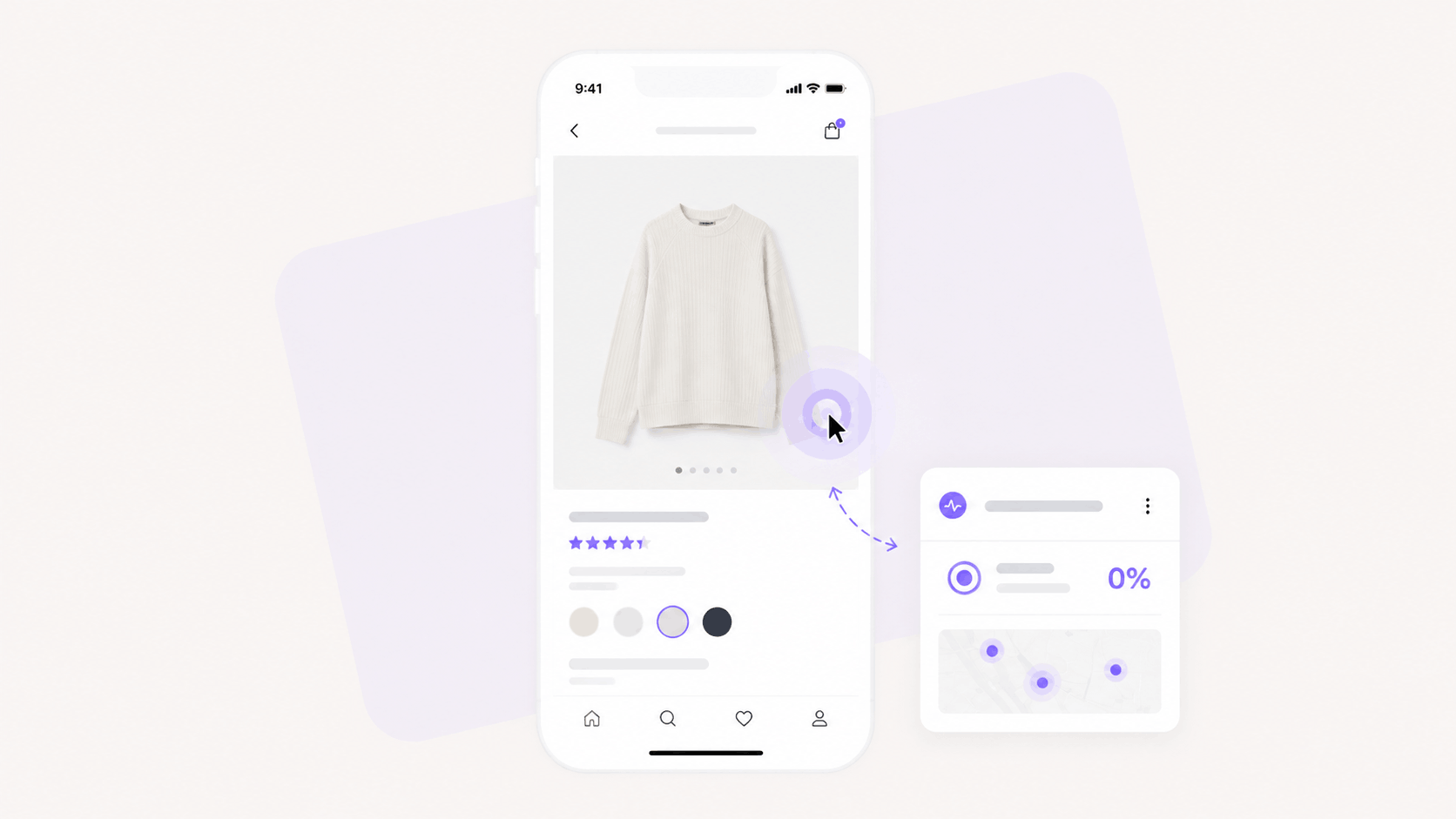
Small targets, overlapping elements, and sticky headers that intercept taps all generate dead clicks on mobile at rates far above desktop. Mobile users tap where the label is, and if the tappable region sits a few pixels off, the tap lands on nothing. So, instead of talking to your AI agent, the user lands on another form and ends up being frustrated.
How to find dead clicks on your website
Click heatmaps
A click heatmap shows you where clicks land on a page, and the useful part is the clusters that sit on nothing. When a heatmap shows a hot spot on a heading, an icon, or a block of body copy, you have found a dead click pattern rather than a single incident. Reading heatmap data properly means treating the clicks on non-interactive elements as the finding, not as noise to filter out.
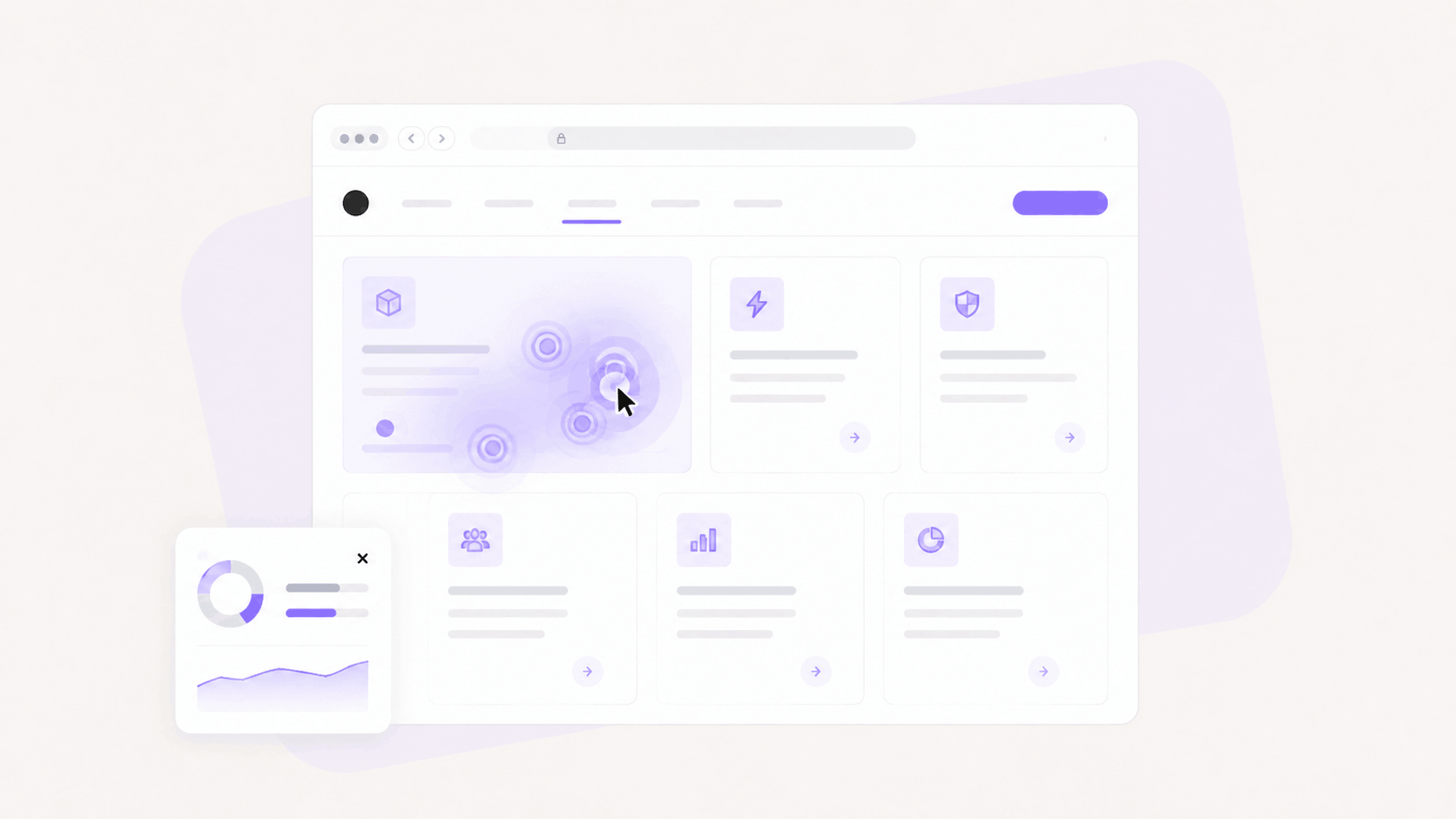
Heatmaps give you the where. They do not give you the why.
Session replay
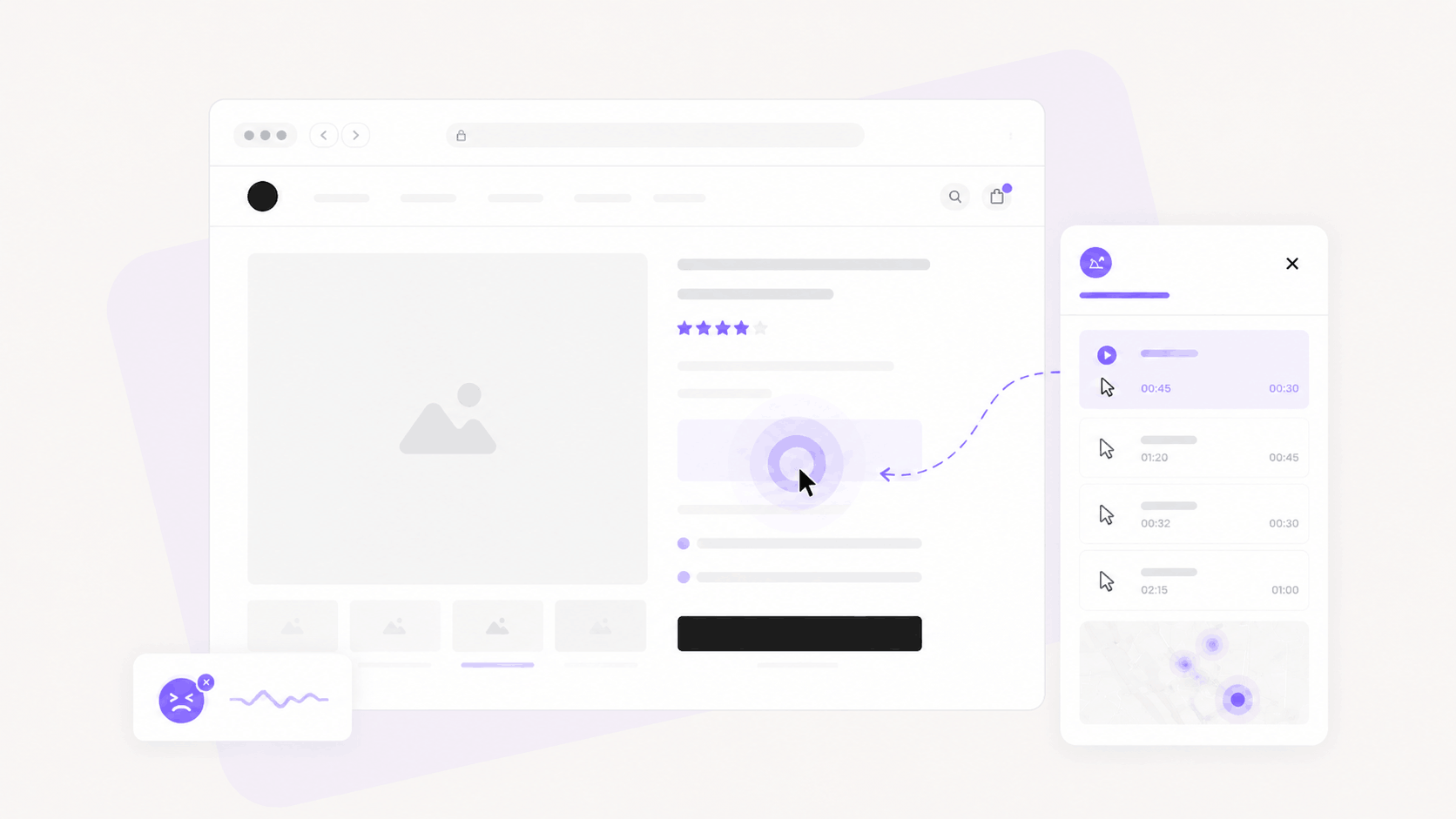
Session replay gives you the why. You watch the user session, see the click, see the pause, and see what they did next. That sequence tells you whether the dead click cost you anything: did the user find the real link a second later, or did they abandon the page?
LiveSession's frustration detection flags dead clicks automatically across sessions, so you are not scrubbing recordings hoping to catch one. Filter to the sessions that contain dead clicks on a page you care about, and watch those.
The pairing is what makes this work. Heatmaps show scale, session recordings show consequence, and you need both to decide whether a dead click is worth engineering time.
How to measure dead clicks
Three numbers turn dead click data into something you can prioritize.
Dead click rate per page tells you what percentage of sessions on a given page contain at least one dead click. This is your triage metric. A checkout step at eighteen percent needs attention that a blog post at four percent does not.
Element-level dead click count tells you which specific elements accumulate the most clicks that go nowhere. This is what you hand to engineering, because it points at a selector instead of a page.
Dead-click-to-exit rate tells you how often users leave immediately after a dead click. This is the number that converts a UX observation into a conversion argument, and it is the one that gets the fix scheduled.
Run these alongside your other product analytics and the pattern usually resolves quickly. The quantitative side tells you where and how much, and the qualitative side tells you what to do about it.
How to fix dead clicks
Fixes fall into two shapes, and the choice depends on what the user was trying to do.
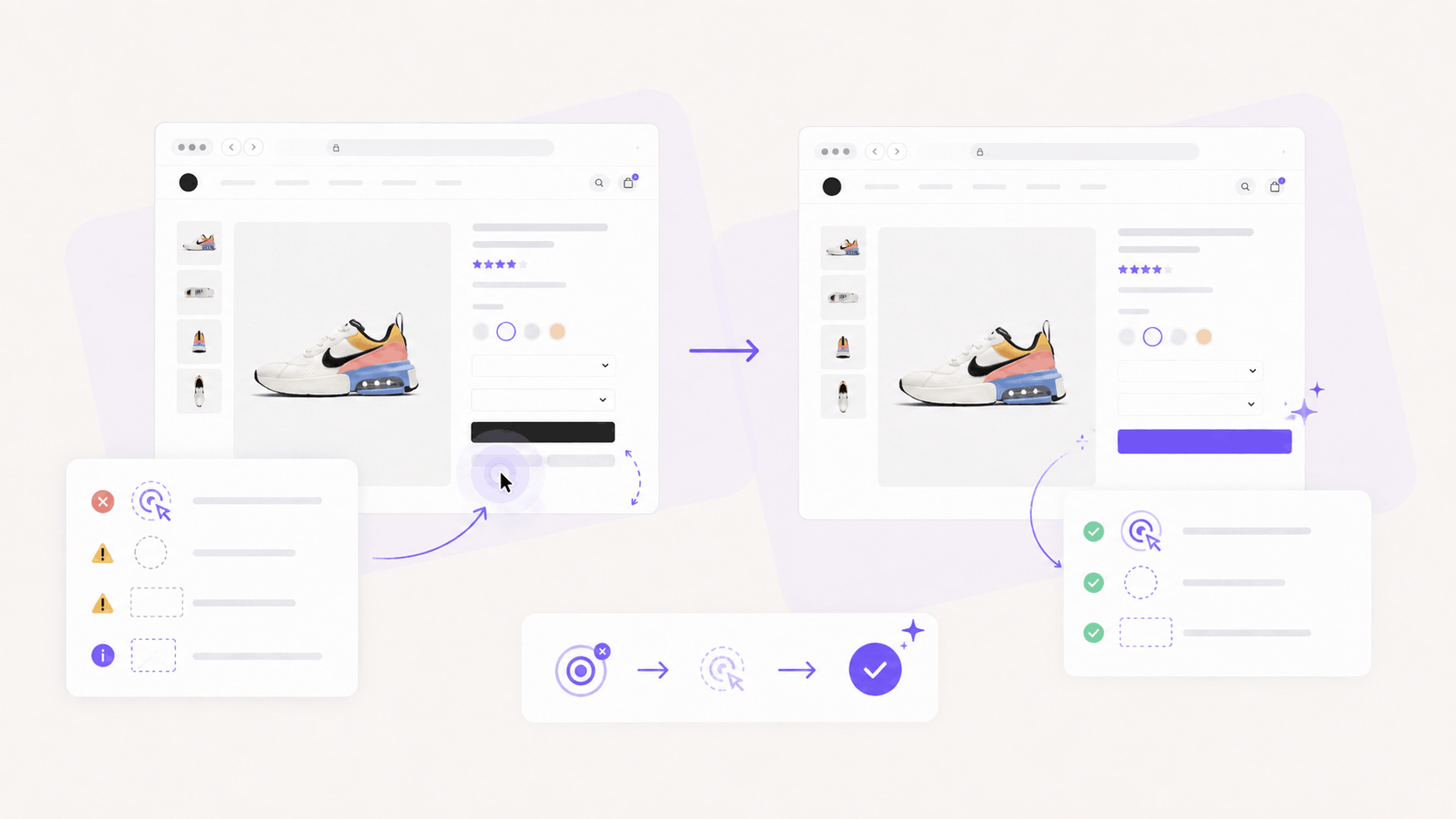
Make the element interactive when the user's expectation was reasonable. If people keep clicking a product image, make it open a larger view. If they keep clicking a heading above a section, link it to that section. The click told you what to build.
Remove the affordance when the expectation was accidental. Strip the underline from emphasized text, drop the hover shadow from a card that leads nowhere, and change the color of a heading that reads as a link. You are removing a promise your interface should not have made.
Disabled buttons deserve their own treatment. A disabled button that gives no feedback produces dead clicks and teaches users that your product ignores them. Add a tooltip that explains the condition, and the click stops being dead.
For handler failures, the fix is engineering work: attach handlers earlier, provide a loading state that visibly absorbs the click, and confirm the binding survives your deploy pipeline. Teams with solid development tooling catch most of this in staging.
When to ignore dead clicks
Not every dead click is a defect, and chasing all of them wastes a sprint.
Users click on text to select and copy it. They click on images to see them larger even where that was never offered. They click empty page areas to dismiss focus from a form field. These clicks register as dead and mean nothing about your user experience.
The filter is straightforward to apply. Does the dead click sit on a path toward a goal, and does it correlate with users leaving? If the answer to both is yes, fix it. If a dead click clusters on a paragraph of body copy in the middle of an article and users read on or click away to an outbound AI workflow, leave it alone.
How LiveSession surfaces dead clicks
Finding dead clicks by watching recordings at random does not scale, and it is the reason most teams never get around to it.
LiveSession flags them for you. Frustration detection runs across every session and marks dead clicks, rage clicks, and JavaScript errors where they happen, so you open a filtered list instead of a haystack. Filter to a page, a segment, or a date range after a deploy, and you get the sessions that contain the problem.
Element-level data tells you which selector is accumulating the clicks, which is the part engineering can act on. Click heatmaps sit alongside it for the page-level view, so you can see a cluster forming on a heading before anyone files a ticket about it.
The pairing is the point. You get the count from the heatmap, the cause from the recording, and both live in the same session. See what LiveSession includes, or start on the free plan.
Start with the clicks you can already see
Dead clicks are the cheapest UX research available to you, because your users are already doing the work of telling you what they expect. Every click on a non-interactive element is a small, specific request. The teams that read those requests ship conversion improvements grounded in behavior instead of opinion, and they notice friction before it turns into churn.
Try LiveSession free and see which clicks on your site go nowhere.
Frequently asked questions
What do dead clicks mean?
A dead click means a user clicked an element they expected to be interactive and received no response. It signals a mismatch between your visual design and your interface behavior, and it is one of the earliest indicators of user frustration you can measure.
What is the difference between rage clicks and dead clicks?
A dead click is a single click that produces no response. A rage click is a burst of rapid clicks on the same element, usually after a dead click failed to produce anything. Dead clicks come first and rage clicks are the escalation.
What is a good percentage of dead clicks?
There is no universal benchmark, because dead click rate varies by page type and by how much text a page contains. Compare each page against itself over time and against similar pages on your own site. A sudden jump after a deploy is more meaningful than any absolute number.
Can dead clicks be detected on mobile?
Yes. Dead taps on mobile are detected the same way as desktop clicks, and mobile rates usually run higher because tap targets are smaller and overlapping elements are more common.
Do dead clicks affect SEO or conversion rates?
Dead clicks have no direct effect on rankings. They affect conversion, because a user who clicks toward a goal and gets nothing is a user who may leave. Pages where dead clicks correlate with exits are the ones worth measuring against your conversion benchmarks.
Related articles




Get Started for Free
Join thousands of product people, building products with a sleek combination of qualitative and quantitative data.